1
Download the app
Download the STATSports app on iOS or Android to join the Academy.
2
Create your profile
Set up your athlete profile in the app.
3
Pair your tracker
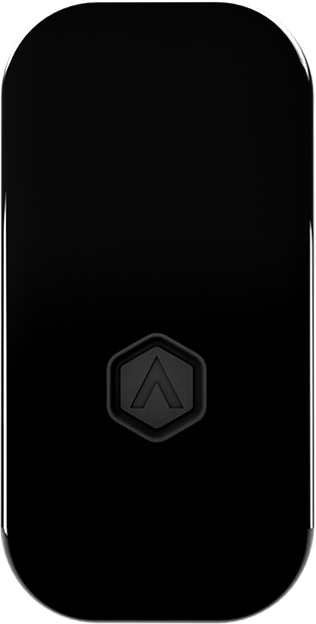
Pair your GPS tracker with your phone and STATSports app.
4
Track, learn & improve
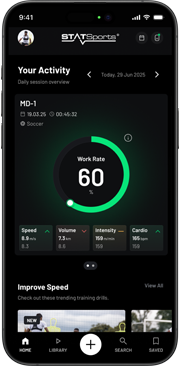
Track up to 24 metrics, access 200+ drills and pro masterclasses.
Your questions answered
You can download the STATSports App and join the Academy from the Apple App Store (iOS) or Google Play Store (Android). Just search “STATSports” and install the app to get started.
- Ensure you are signed in.
- Open the STATSports App.
- Ensure Bluetooth is enabled on your phone and your tracker is powered on.
- The 'Tracker' model will pop up automatically on the screen. Press 'Pair Tracker' to start pairing the tracker to your app account.
- Towards the end of the pairing process, the tracker will restart on its own and once completed will display your name. Please do not click on the app or the tracker during this process.
- Once paired, the model will change to 'Connected!' and the tracker will display your name.
- Your tracker will be successfully paired to the App Account.
** Please note: If you are an existing AAS user, please ensure to log out from the app before proceeding to pair on the STATSports App.
- Make sure to charge your tracker prior to your session.
- You can simply wear your Tracker and sync the data after your session to get performance insights and an overview of all metrics.
- Turn on your Tracker.
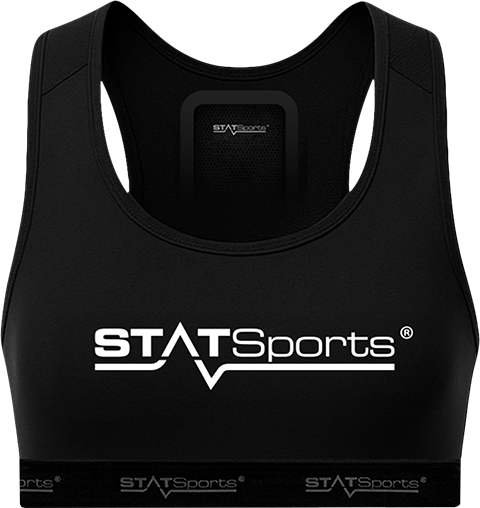
- Place the Tracker in your vest.
- Put your vest on.
- You are now ready to go. (When your tracker picks up GPS, you will hear three beeps.)
- Turn your Tracker off once the session is complete.
** Please note: You need to be outside for the GPS satellite to pick up.
- To sync your data, please ensure your Bluetooth is enabled on your phone. Open your app and turn on your Tracker.
- Select the 'Tracker' button located in the top right corner of the home screen.
- Select 'Sync Session'.
- Choose an RPE Score (Rating of Perceived Exertion).
- The session will be successfully synced and you will be able to view your performance.
- To switch to the new STATSports App and join the Academy, please ensure you first log out of the Apex Athlete Series App on your phone and any other devices where you're currently signed in. You can only be logged into one app at a time—being signed into both simultaneously may lead to connection or syncing issues.
- First download the STATSports App.
- Attempt to login to the STATSports App with your Athlete Series App logins.
- This will prompt you to change your password.
- After creating a new password you will be able to login to the STATSports App.
- Once in the app your existing GPS Tracker will already be paired and you can start tracking your performance. You do not need to unpair and re-pair your GPS Tracker.